Free kitchen planner · user guide

How to design your kitchen online, step by step.

Our free kitchen planner plans a kitchen in your own room, shows it in 3D and prices every unit as you go. This guide takes you through all six steps, with tips from our designers.

  • About 15 minutes
  • Nothing to download
  • No sign-up
  • Phone, tablet or computer
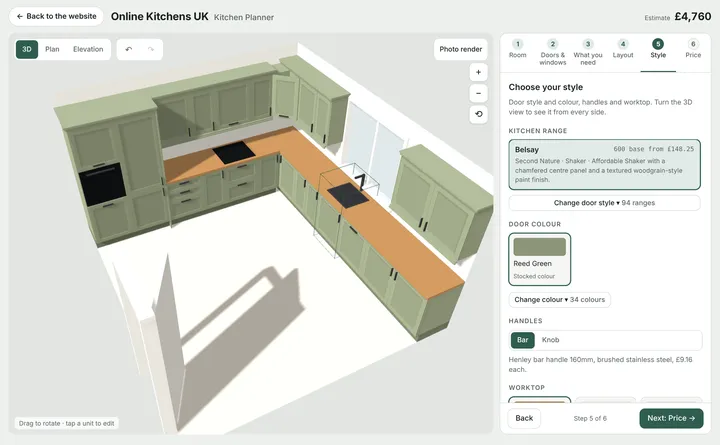
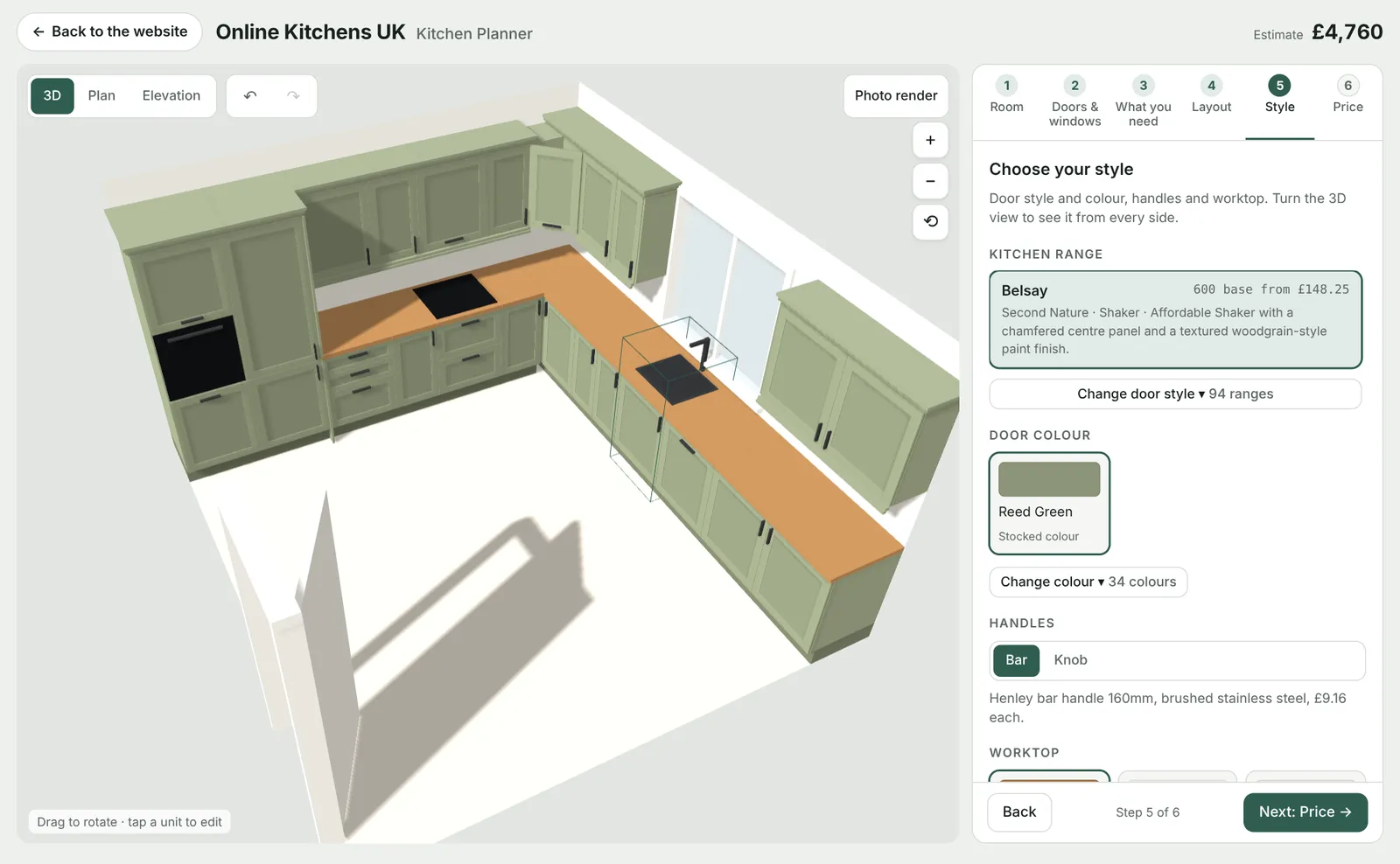
The free kitchen planner showing an L-shaped kitchen in 3D with the style options beside it

Before you start

Five minutes with a tape measure.

You can try the planner with the sizes it starts with, but your own measurements give you a layout and price that fit your room. Measure in millimetres.

  • Each wall from corner to corner, at worktop height (about 900mm up).
  • Each door: its width, including the frame, and how far it is from a corner.
  • Each window: its width, its distance from a corner, and the sill height from the floor.
  • Things you can't move, such as a boiler or a chimney breast. Note where they are.
  • Your appliances: the oven, hob, fridge-freezer and dishwasher you want.
  • Ceiling height, if you're thinking about tall 2150mm units.

Step 1

Your room

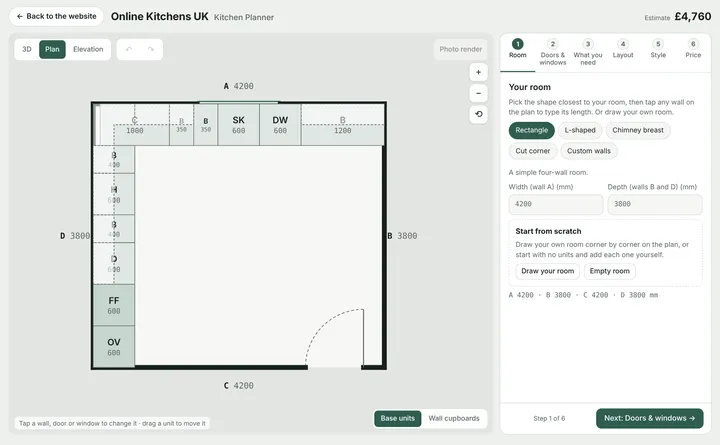
Start by giving the planner the shape and size of your room. Everything else is planned to fit it.

  • Pick a shape: Rectangle, L-shaped, Chimney breast, Cut corner or Custom walls.
  • Type the sizes in the boxes, or tap any wall on the plan and type its length.
  • Walls are lettered A, B, C, D going round the room, so you always know which one you're changing.
  • Room an unusual shape? Choose Draw your room and tap each corner on the plan. Walls snap to straight lines and 45° angles.
  • Want to place every unit yourself? Choose Empty room and add units one by one in step 4.
Tip: measure each wall twice. Old walls are rarely square, so use the shortest measurement.
Step 1 of the planner: choosing the room shape and typing the wall sizes
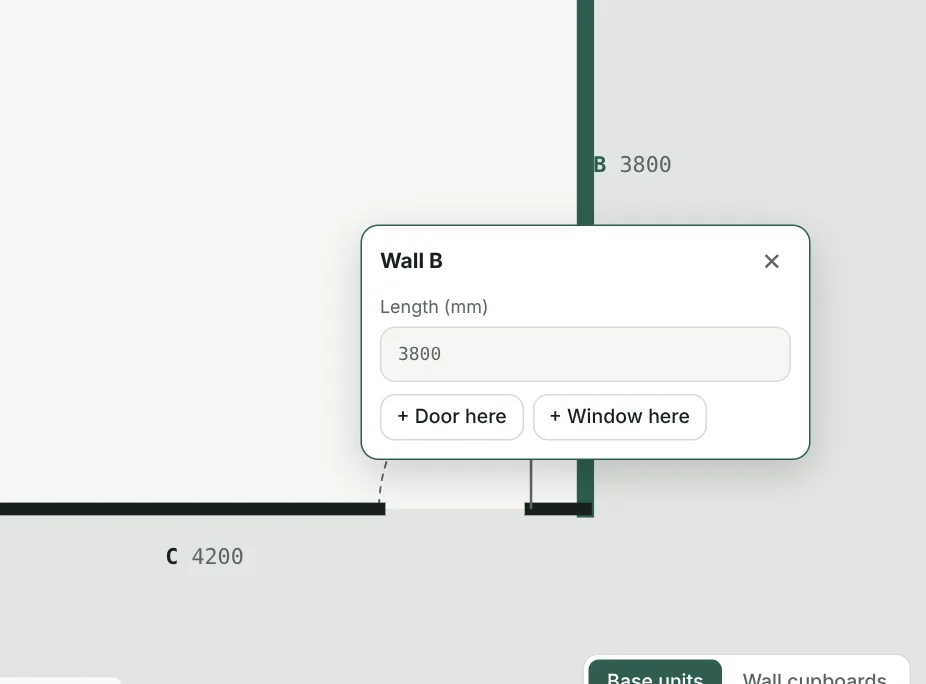
Tapping wall B on the plan opens a box to type its length or add a door or window
Tap a wall to type its length, or add a door or window to it.

Step 2

Doors & windows

Doors and windows decide where units, the sink and wall cupboards can go, so put them in before you choose a layout.

  • Tap Add door or Add window, or tap a wall on the plan and choose + Door here or + Window here.
  • Drag a door or window along its wall. Pull its round handles to make it wider or narrower.
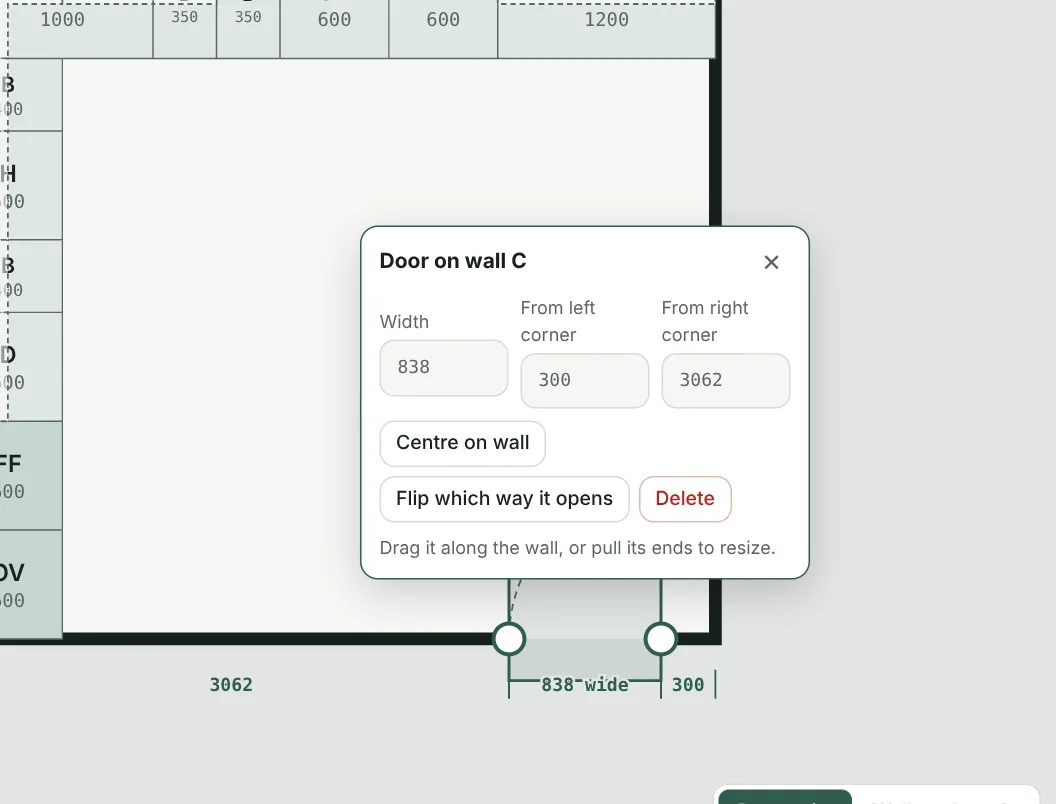
  • Tap it to type exact sizes: the width, the distance from the left or right corner, and for windows the sill height and window height.
  • Use Centre on wall to centre it, and Flip which way it opens to change a door's swing.
Tip: measure positions from the left-hand end of the wall as you stand in the room facing it. The plan shows the distance to each corner as you drag.
A door selected on the plan, with its width, distances from each corner and handles to resize it
Tap a door or window to type its size and position, flip it or delete it.
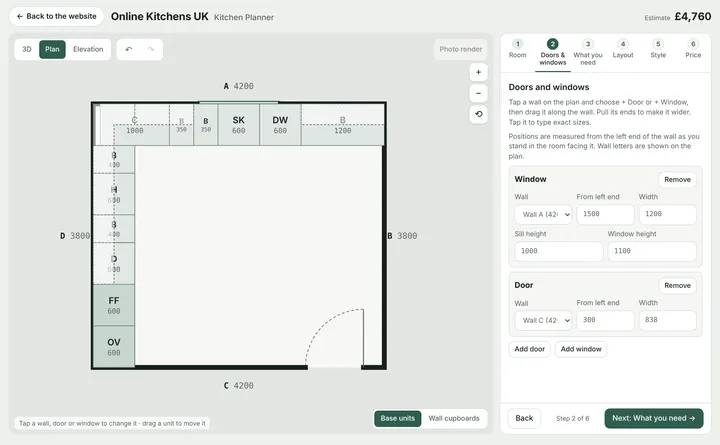
Step 2 of the planner listing each door and window with its wall, position and size

Step 3

What you need

Tell the planner what you want in your kitchen. In the next step it plans each layout around these choices.

  • Oven: single oven tower, double oven tower, single oven & combi oven tower, under-counter oven or range cooker.
  • Hob: induction, gas or ceramic, 600, 800 or 900mm wide. Extractor: integrated hood, chimney hood or none.
  • Fridge-freezer: tall integrated, freestanding, American, under-counter or none.
  • Dishwasher, washing machine, spaces for freestanding appliances and a microwave.
  • Corner units: blind corner, L-shaped or diagonal. Sink: single, 1½ or double bowl, or Belfast.
Tip: you can come back and change these at any time. Use Reset on this step to start again from scratch.
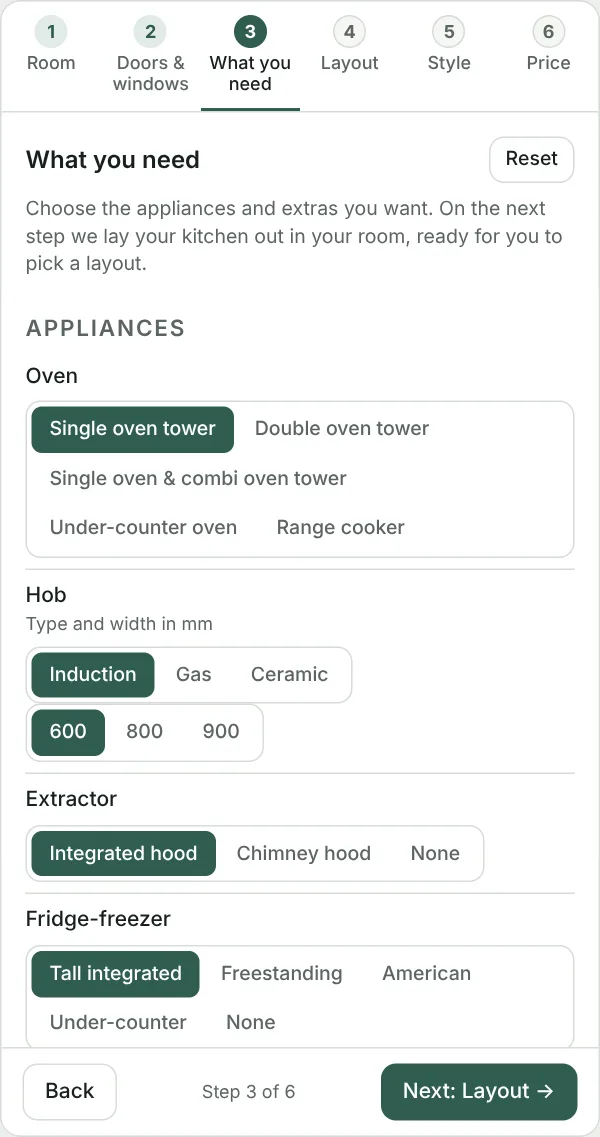
Step 3 of the planner: choosing the oven, hob, extractor and fridge-freezer
Each choice is one tap. The layouts in step 4 are planned around them.

Step 4

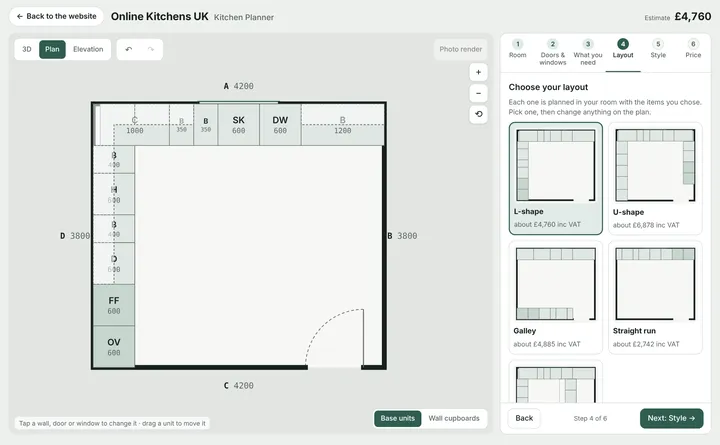
Choose your layout

The planner plans each layout in your room with the things you chose, and shows a price for each. Pick one, then make it your own.

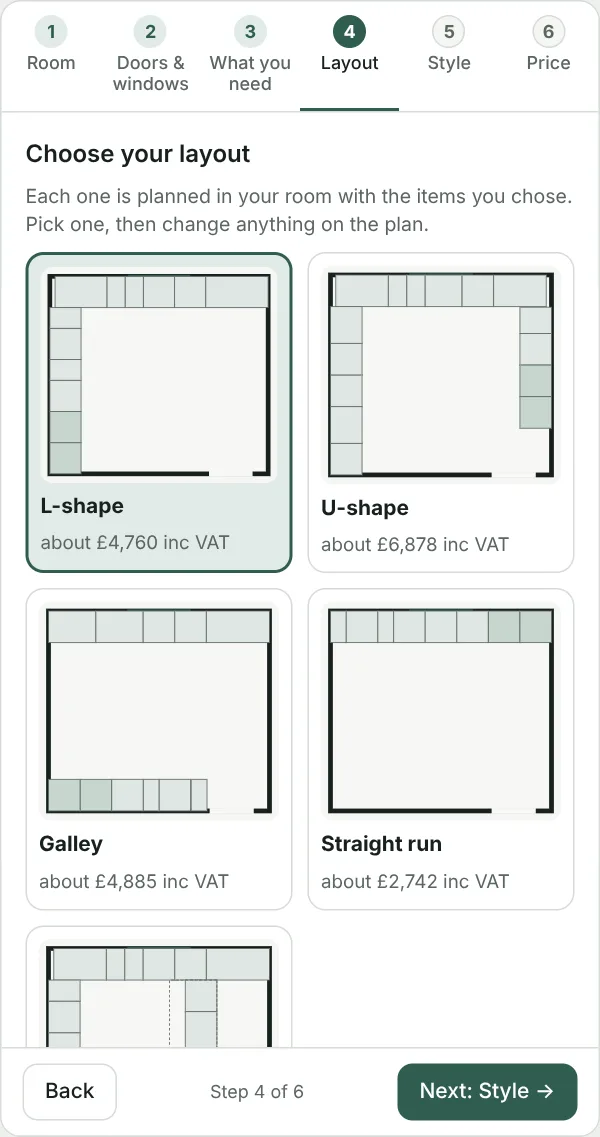
  • Compare L-shape, U-shape, Galley, Straight run and Peninsula. A layout that won't fit your room is greyed out, with the reason.
  • Turn wall cupboards on or off, and add an island with seating if there's room.
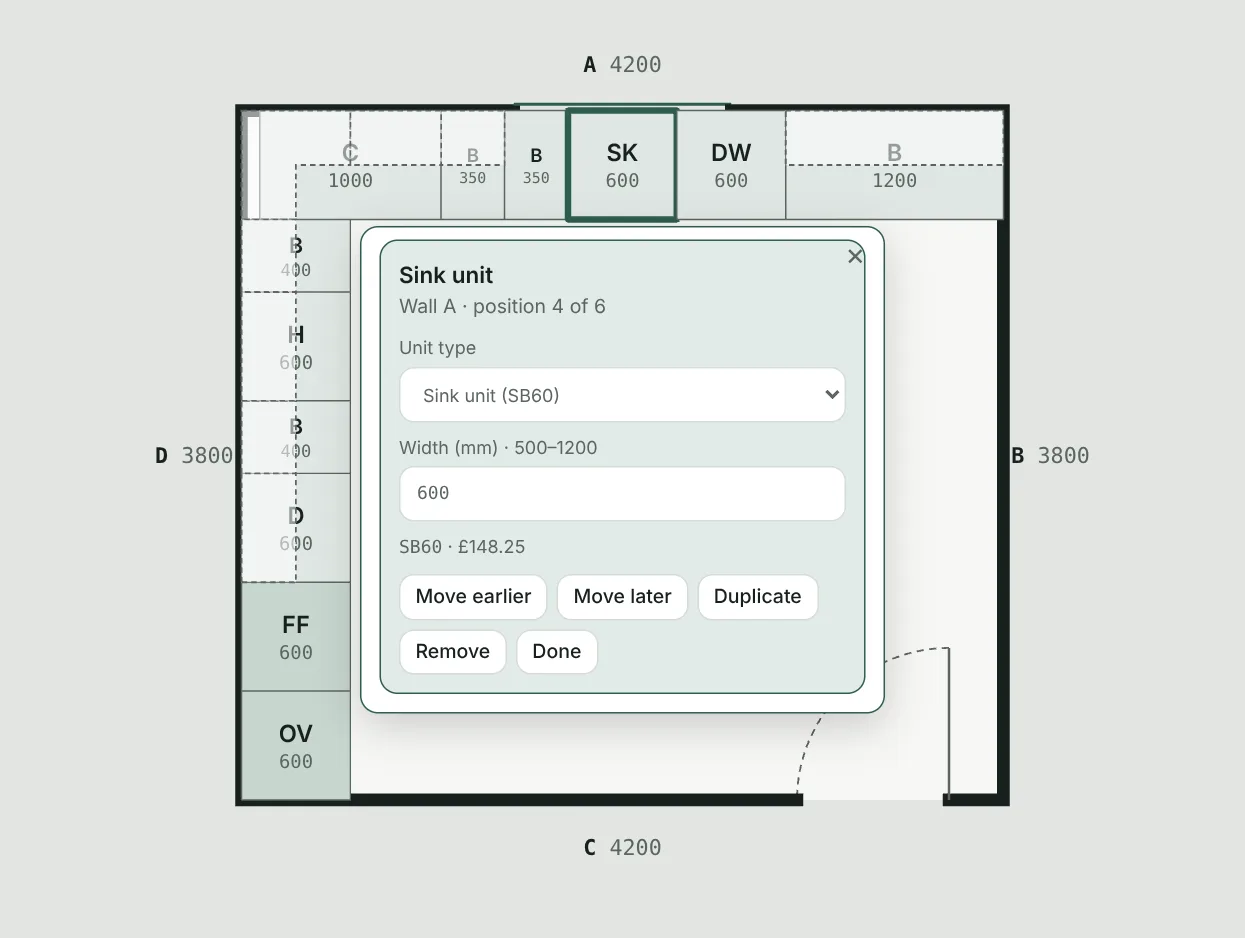
  • Tap any unit on the plan, in 3D or in the elevation to change it. You can swap the type, change the width, move it along the run, duplicate it or remove it.
  • Drag units on the plan to move them. The Base units / Wall cupboards switch picks which ones you're moving.
  • Wall cupboards come in 575, 720 or 900mm high, or made to measure. Blind corner units can be left- or right-handed and come in 900, 1000 or 1100mm.
  • Made a mistake? Use undo ↶ and redo ↷ above the drawing.
Good to know: units come in standard widths. If a wall isn't an exact fit, the planner uses the nearest standard unit and adds a filler panel (up to 150mm) to close the gap, just as a fitter would. Kitchen checks under the layouts flag anything to look at, such as a hob under a window.
Step 4 of the planner: L-shape, U-shape, galley and straight run layouts, each with a price
The layout choices, each planned in your room with a price
Tapping the sink unit opens a box to change its type and width, move, duplicate or remove it
Tap any unit to change it. The code and price update as you go.

Step 5

Choose your style

Now the fun part. The 3D view updates as you choose, so you can see your kitchen from every side.

  • Kitchen range: choose from 94 door ranges. Shaker, handleless, slab, gloss and in-frame are all included.
  • Door colour: stocked colours, or paint-to-order colours on painted ranges.
  • Handles: bar or knob, or true handleless rails in aluminium, brass, copper or graphite on handleless ranges.
  • Worktop: pick a worktop to see it in 3D and add it to the price.
  • Drag the 3D view to turn it, and pinch or use + / − to zoom.
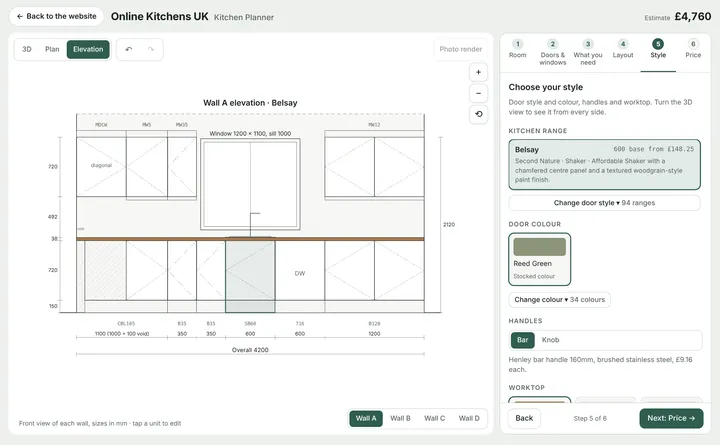
Tip: switch to Elevation to see each wall face-on with every unit's code and size, just like the drawings our designers send to fitters.
Step 5 of the planner: choosing the range, door colour and handles, with the kitchen in 3D
Elevation view of wall A, with unit codes and sizes
The elevation shows each wall face-on, with unit codes and sizes.

Step 6

Your price

See exactly what your kitchen costs, item by item, from our current price list including VAT.

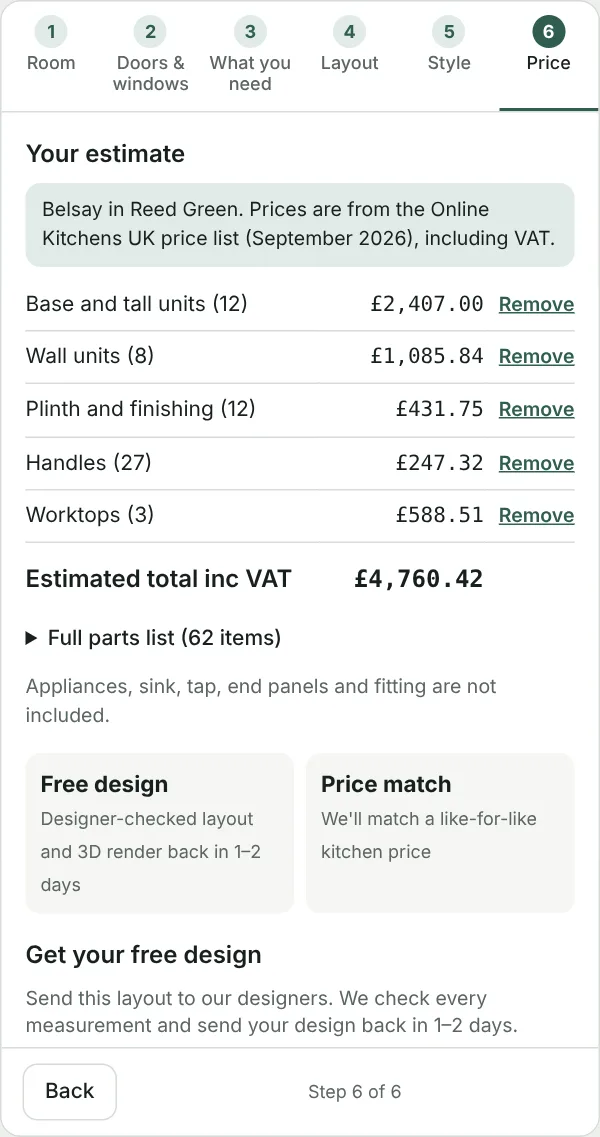
  • The total is split into base and tall units, wall units, plinth and finishing, handles and worktops.
  • Open the Full parts list to see every code, quantity and price.
  • Already have worktops or handles? Tap Remove next to a group, or × next to a single item, to take it off the price. Add back puts it back.
  • Fill in your details and tap Send my design. Our designers check every measurement and send your design back, usually within 1–2 working days. It's free.
Not included: appliances, sink, tap and fitting. Your design saves as you go on this device, so you can come back and finish it later.
Step 6 of the planner: the itemised estimate, with Remove buttons next to each group
The itemised estimate with Remove next to each group
Tap Remove to take a group, such as worktops, off the price.

Three ways to see it

3D, plan and elevation.

3D

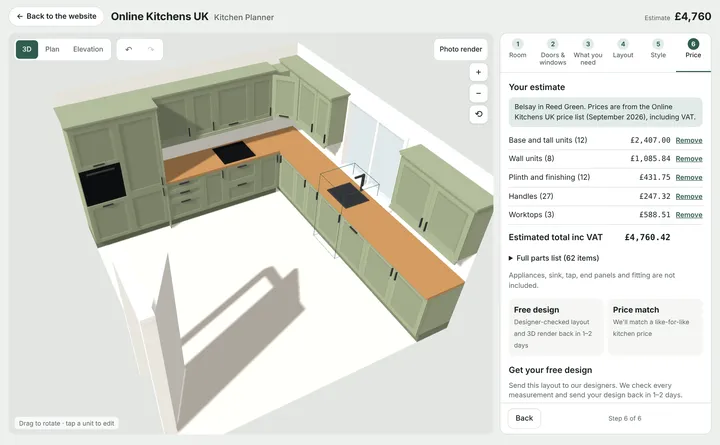
Your kitchen in your chosen doors, handles and worktop. Drag to turn it round, pinch or scroll to zoom, and tap a unit to change it.

Plan

The view from above, to scale. Tap walls, doors and windows to change them, and drag units to move them.

Elevation

Each wall face-on, with every unit's code, width and height. Use the wall buttons to switch between walls.

Questions

Good to know.

Is the kitchen planner really free?

Yes. There is nothing to pay, nothing to download and no sign-up. When you send us your design, our designers check it for free.

Does the planner save my design?

Yes, it saves as you go in the browser on your device, so you can close it and carry on later on the same phone, tablet or computer. To keep a copy with us, send your design to our designers.

What is a filler panel?

Units come in standard widths. If a wall isn't an exact fit, the planner uses the nearest standard unit and fills the gap of up to 150mm with a filler panel cut to size from a matching end panel.

Why does a blind corner unit need a 100mm gap?

A blind corner unit stands 100mm away from the wall it runs into, so its door and handle clear the units on the other wall. The planner adds this gap for you and shows it on the elevation, for example "1100 (1000 + 100 void)".

Is the price in the planner what I will pay?

The price is worked out from our current price list including VAT. Appliances, sink, tap and fitting are not included. Our designers check every measurement before you order, and anything made to measure is confirmed then.

Can I use the planner on my phone?

Yes. It works on phones, tablets and computers. A bigger screen is easier for moving units around.

I'd rather someone else designed it.

No problem. Send us your measurements and photos and our designers will design your kitchen for free, with 3D images, plans and an itemised quote, usually within 1–2 working days. Ask a designer.
Ready to design your kitchen?

Free, nothing to download, and a free check by our designers when you're done.